Share article:



Examples of automated text messages (and how they work).

Last updated January 2026
Automatically sending SMS messages can save you hours spent on manual tasks, improve customer experience, and keep your tone of voice consistent. Rather than initiating and replying to text messages one at a time or relying on generic mass texts, simplify common tasks with smart messaging.
Connecting with your audience and solving problems can be automated with a few thoughtful clicks. Both parties win when it comes to SMS automation, too. So, rather than play phone tag or wait for an email that sits idly in an inbox, automate a 2-way conversation for maximum efficiency.
While the concept of configuring automation may seem daunting, you can implement complex messaging simply; it’s simply thinking, ‘if this, then that’. Think about what you want to achieve with your automation, as well as common conversation streams, and logic will prevail.
We’ll break down how it works, share some automated text message examples, and give you some best practice tips.
What are automated text messages, and how do they work?
SMS automation refers to text messages being automatically triggered based on conditions (or ‘rules’) that have been set up in advance.
These conditions can be set up to be as simple or as complex as you like. From basic ‘yes’ or ‘no’ questions to niche scenarios, they are easy to set up. And, once they are launched, you can set and forget them or update them as your needs change.
How do automated text messages work?
On a basic level, automated text messages work by sending out when a text messaging or automation platform detects the right conditions. These conditions could be receiving an SMS with certain keywords in the text or something happening in another app. You typically need a business texting app like Sinch MessageMedia to get text message automation to work.
How to automate text messages in Sinch MessageMedia
Sinch MessageMedia automates text messages based on the conditions of a text you receive in the MessageMedia inbox. Here’s how it all works:
To start with, choose up to four different conditions that relate to the SMS you receive.
1. Message type is [custom field]
2. Message content [does not contain/contains] [any/all] of the following keywords [custom field]
3. Date and time received is [between date & time/before/after] [custom field]
4. Receiving number is [custom field]
And, based on these, you can then perform any of the following actions.
- Send reply SMS
- Add to group
- Remove from group
- Forward to mobile
- Forward to email
- Unsubscribe
- Forward to URL
For context, let’s explore ways to put this feature into practice.
5 automated text message examples and templates.
Five examples of automated text messages you could try are:
- Text-in competitions where you enter senders into a contest based on their responses
- Delivery and pick-up options that customers can choose by texting a number
- Reminders, confirmations and updates that senders can sign up for by texting you
- Customer support surveys and solicited reviews completed entirely over text
- After-hours and out-of-office notifications that send automatically when you’re away
Let’s go over how each one works in a service like Sinch MessageMedia.
1. Text-in competitions.
For entertaining and easy campaigns, host a text-in competition wherein participants text in their entries. This is a great way to collect customer mobile numbers, so long as they opt in to receive further communication from you.
We’ve seen this done well on radio programs that have a dedicated mobile number. For example, “We’ll play you a song clip backwards. Text in who you think the artist is by midnight for your chance to win.”
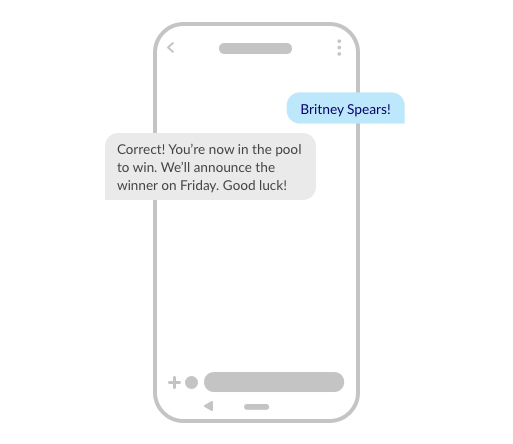
- Message content [contains any of the following keywords] [Britney Spears]
- Action [Send Reply SMS]
- Message [Correct! You’re now in the pool to win. We’ll announce the winner on Friday. Good luck!]
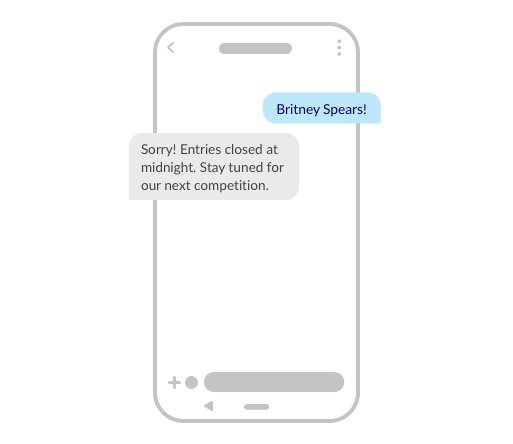
Add a time-based rule to exclude those who have entered too late.
- Date and time received is [after] [12/12 11:59pm]
- Action [Send Reply SMS]
- Message [Sorry! Entries closed at midnight. Stay tuned for our next competition.]
Your third action could be to add them to a group, so you won’t need to sift through entrants later.
- Message content [contains any of the following keywords] [Britney Spears]
- Date and time received is [before] [11:59pm]
- Action [Add to Group]
- Group [Pool to win]
Hosting SMS competitions are a great way to grow your contact list. You can also then segment them into groups for future marketing efforts. Don’t forget to include an opt out message – brush up on opt out rules.
2. SMS for delivery and pick-up options.
With the growth of online shopping, take-away and click-and-collect in our society, we are often eagerly awaiting an update on one order or another. SMS can be used to proactively let people know when to expect their delivery or when it’s ready to pick up.
Send texts with timeframe options for deliveries that require the homeowner to be present.
For example, “Hey Nate, Great news! Your new sofa is ready to leave our warehouse. All we need to do is settle on a time and date that would suit you. Please reply using only the number (1-3) you’d prefer.”
- Message content [contains any of the following keywords] [1]
- Action [Send Reply SMS]
- Message [No worries! We’ll see you later on today.]
Note that you can easily customise your messages by using merge tags, similar to mail merge. Add first names, addresses, times and dates by uploading a spreadsheet and matching columns within our portal.
These automations will make it easier for delivery drivers to plan out their workload, as well as keep expectant customers informed.
3. Reminders, confirmations and updates.
To keep your contact list up to date and to get the quickest replies, relying on SMS is your best bet. After all, 82% of consumers keep their SMS notifications switched on and 90% of texts are read within 90 seconds.
For instance, real estate agents often use an automated SMS service to stay in touch with their prospects, sellers and renters. Agents spend 60% of their time on the field, and gone are the days of people searching for properties in the newspaper. Now, they can be just a text message away.
When prospects opt-in to receive text messages about property listing updates, automatically follow up on enquiries.
For example, “Hey Jayden. Here are the top 3 listings for 2-bedroom units in your area. Reply with Property1, Property2 or Property3 to set up a viewing or STOP to unsubscribe.”
- Message content [contains any of the following keywords] [1, PROPERTY1]
- Action [Send Reply SMS]
- Message [Thanks for enquiring about 5 Violet Street. Schedule your viewing appointment today: #ShortUrl#]
4. Customer support surveys and solicited reviews.
For many businesses, getting positive feedback from customers, patrons and clients make a huge difference. Be proactive by setting up automated surveys to stay on top of customers’ opinions.
For example, shine the spotlight on your happy customers and acknowledge those who are unsatisfied.
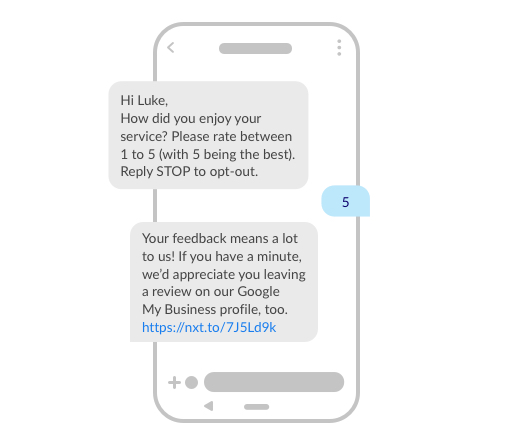
- Message content [contains any of the following keywords] [4, 5]
- Action [Send Reply SMS]
- Message [Thanks for your feedback. It means a lot to us! If you have a minute, we’d appreciate you leaving a review on our Google My Business profile, too. #ShorUrl#.]
Split your automated replies based on the score they text back. Offer a discount code to encourage customers to give you a second chance and to let them know you care.
- Message content [contains any of the following keywords] [1, 2, 3]
- Action 1 [Send Reply SMS]
- Message [We’re sorry to hear your experience was less than perfect. Here’s a discount code for 20% off your next purchase: REVIEW20]
You could also add a third action and move your contacts into a group based on their replies.
- Action 2 [Move to Group]
- Group [Low Net Promoter Score/High Net Promoter Score]
5. After-hours and out-of-office automations.
If you’re on the go or are unavailable after-hours, don’t leave your customers waiting. Let them know you will get back to them when you can. Include your opening hours for effective and effortless customer service.
For example, you may be a pet groomer who has gone home for the day.
- Date and time received is [between time range every day] [5 pm – 8:50 am]
- Action [Send Reply SMS]
- Message [Hey there. I’ve gone home to tend to my own furry friend for the evening. I’ll be back at 9 am tomorrow, and will get back to you then. Talk soon!]
Frequently asked questions.
What tools do I need to send an automated text message?
You need some kind of text message automation software. Some business texting apps, like Sinch MessageMedia, also work as automation tools. Or, you can use an outside automation service or integration that automates texts using events that happen in other software.
Can I send an automated text message using my iPhone or Android?
For individual texts, you can automate messages on your phone with apps such as the iPhone’s Shortcut app. If you want to automate a bulk text, get a business texting service like MessageMedia and download its app to use it on your mobile device.
Can I use text message automation for SMS scheduling?
Yes, you can use automation to send a text at a certain time and date, and automated texting lets you even send at recurring times. But, you can also send basic scheduled texts through your business texting app’s message drafting interface.
How do I send automated text messages for free?
You can send automated text messages through MessageMedia or use it as a free autoresponder by signing up for its free trial. The free trial lasts 14 days and gives you 25 free texting credits.
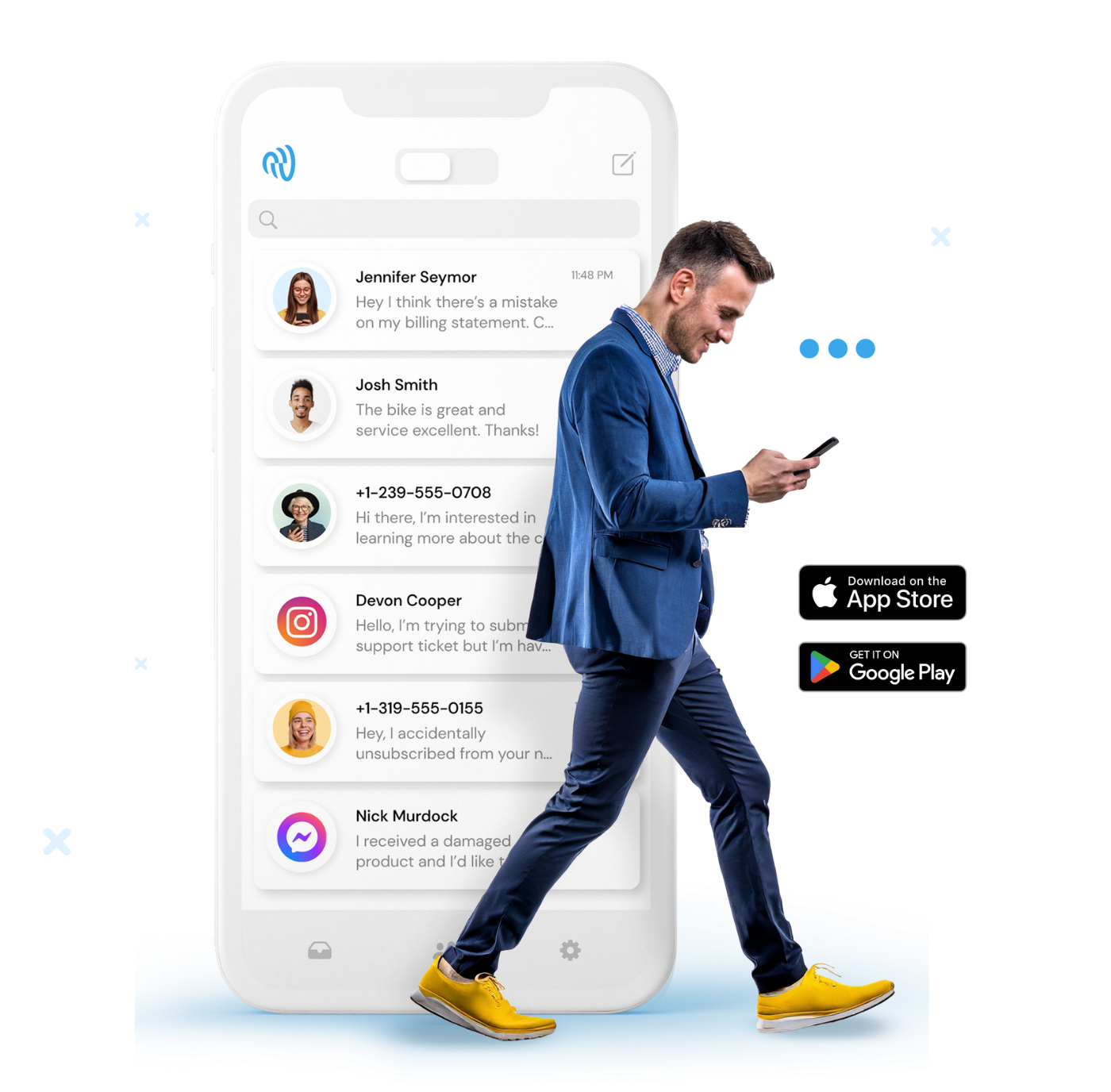
Take your inbox with you on the mobile app.
Keep this in mind.
- Before we wrap up this SMS automation guide, here are a few tips to keep in mind as you give it a shot:
- Create VIP opt-in lists for your engaged customers. Sort contacts into as many groups as you like to narrow down your audience.
- Configure your opt-out message. Suit it to your company language; this can be ‘STOP’, ‘Unsubscribe’, or ‘See you later’. This automation will apply across your whole account.
- Keep texting etiquette and social sending in mind. Consider scheduling messages to be sent at appropriate times or set up auto-reply windows.
Want to give automated SMS a spin?